

Tutorials
How to Turn On Dark Mode Across Your Apps
Ready for better screen comfort? Discover step-by-step strategies for turning on dark mode in all your favorite apps. Get tips for browsers, messaging, productivity, and more.
Advertisement
Switching your devices and apps to dark mode is a practical upgrade. It benefits both your eyes and battery and lets you navigate screens more comfortably. Many people find it easier to read and less distracting.
Ready to stop squinting and learn a few easy methods? This guide breaks down how to turn on dark mode across your favorite apps, step by step.
Syncing Device Settings for Seamless Dark Mode
Start by syncing your device-level appearance settings. This ensures dark mode is activated everywhere possible, and you won’t need to repeat steps for each app.
Switching once saves time. Many apps respect your system’s theme. Here’s how to set your phone or computer’s display for consistent dark mode from the start.
Enabling on Android Phones
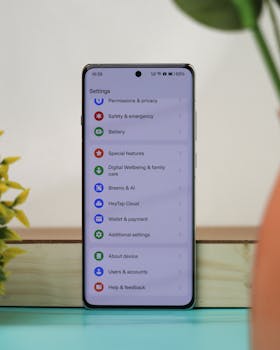
Navigate to Settings and search for ‘Display.’ Tap the ‘Dark theme’ or ‘Appearance’ option. Toggle dark mode on and instantly set the tone for compatible apps.
This process applies system-wide, so apps like Chrome and Google Photos follow suit. You’ll spot a dark interface in supported core apps and many third-party ones.
For Android users, timing automation makes things easier. Use ‘Schedule’ to activate dark mode at sunset or your custom hours, then let your phone handle the rest.
Switching to Dark Mode on iOS
Open your iPhone Settings, find ‘Display & Brightness,’ and select ‘Dark.’ Instantly, menus and most apps echo this preference, delivering consistent dark mode visuals.
You can automate dark mode here too. Select ‘Automatic’ to trigger the setting based on time of day—daytime stays light, evenings turn to dark mode effortlessly.
Check your favorite apps after this change. If dark mode isn’t showing, some may require separate in-app toggles. A quick dive into individual settings can close any gaps.
| Device/OS | Navigation Path | Can Schedule? | What To Do Next |
|---|---|---|---|
| Android | Settings > Display > Dark theme | Yes | Turn on and schedule for sunset or custom times |
| iOS | Settings > Display & Brightness > Dark | Yes | Toggle automatic switching based on time of day |
| macOS | System Settings > Appearance > Dark | Yes | Sync with light/dark schedule for global effect |
| Windows | Settings > Personalization > Colors > Choose Dark | No | Manually switch or use third-party scheduling apps |
| Web browsers | Browser Settings > Appearance > Dark/Theme | No | Set manually for each browser or install extensions |
Adjusting In-App Appearance for Precise Control
Getting granular lets you customize dark mode only for certain apps. This section offers a quick playbook for tailoring the look and feel of individual favorites.
Some apps ignore system-wide settings and require a manual change. Navigating each app’s appearance settings ensures you get dark mode exactly where you need.
Messaging Apps: Stay Comfortable in Chats
Open app settings for your messaging service. Locate ‘Appearance’ or ‘Theme’ settings and select dark mode, even if your phone hasn’t switched globally.
Popular chat services make this option easy to find. If there’s a toggle near profile or general settings, you’re just a tap away from a darker chat window.
- Activate dark mode manually for each messaging app to guarantee midnight-friendly chats, regardless of your device’s settings.
- Look for ‘Themes’ or ‘Appearance’ in each app’s menu since the exact location may differ between services.
- Expect instant visual changes after toggling the dark mode setting with no need to restart the app.
- If you use multiple services, repeat the process in each to maintain readability across conversations.
- Check updates for new dark mode refinements, as many messaging apps update visual options periodically.
After activating, enjoy smoother chat sessions in low-light environments, with screen glare greatly reduced thanks to consistent dark mode across conversations.
Email and Calendar: Professional Tools, Gentle on the Eyes
Head to email app settings, open ‘Theme’ or ‘Display,’ and select dark mode for less glaring inbox management at night. Most major providers support this feature.
Calendar apps typically sync with device-level settings, but double-check their appearance menus. Set a dedicated dark mode if the default doesn’t match your preference.
- Switch email settings to dark mode to lessen nighttime brightness and boost focus for late replies.
- Set calendar views to dark mode for clearer scheduling, especially before bed or in meeting rooms with low light.
- Manually change appearance for services that don’t follow system defaults.
- Revisit app menus after updates, as new dark mode options may appear periodically.
- Balance your eye comfort by mixing dark mode in communication essentials with brighter themes where you read longer content.
After setup, you’ll experience gentler transitions from emails to appointments, staying organized even in dim rooms thanks to comprehensive dark mode support.
Making Browsing and Social Apps Friendlier at Night
Total comfort means your browser and favorite social spaces embrace dark mode, too. With direct toggles or extensions, you gain control over your web experience after sunset.
Modern browsers offer built-in dark mode options; many social apps have unique settings. Take smart steps to shield your eyes and create a soothing scrolling routine.
Switching Web Browsers to Dark Themes
Jump into your browser’s appearance menu and look for a dark mode option. Chrome, Firefox, and Edge feature this setting in accessible places.
Some browsers offer scheduling or allow syncing with system appearance. Adjust these for a consistent browsing tone, day or night, without extra extensions.
If your browser lacks native dark mode, consider installing a reputable dark mode extension. It lets you force dark backgrounds even on stubborn web pages.
Customizing Social Media Feeds
Dive into Facebook, Twitter, Instagram, or TikTok settings. Search for ‘Display’ or ‘Theme’ and enable dark mode directly inside the app.
Some platforms offer ‘auto’ settings, following your device’s theme. This ensures feeds are never jarring as you switch between apps at night.
If a service doesn’t support dark mode natively, use the browser version with forced dark mode. Extensions or clever browser hacks fill this gap effectively.
Tuning Reading and Productivity Apps for Comfort
Fine-tuning book readers and note tools creates a dark mode experience wherever you focus. Batteries last longer, and concentration deepens in reading environments that match your lighting.
Major reading apps let you set dark backgrounds for e-books instantly, while productivity suites expand appearance options with each update for more tailored workflows.
Turning Down the Lights in E-Readers
Inside your preferred e-reading app, tap the ‘A’ or ‘Display’ icon. Set a black background with white or gray text and preserve your eyes during long sessions.
Contrast settings matter. Look for customizable hues or adaptive screens that shift based on light. Dark mode saves eyestrain and battery for marathon reading nights.
Kindle, Google Play Books, and Apple Books all deliver dark mode. Newer apps may call it ‘night mode’—if so, try toggling both to see what suits you best.
Making Notes and Documents Gentler
Visit appearance settings in your favorite notes or to-do apps. Look for ‘Dark’ or ‘Night’ options to create lists and reminders in eye-friendly colors.
Open a blank document or your regular calendar. Notice how text becomes easier to skim with dark backgrounds, especially on mobile in conference rooms or travel.
If dark mode seems to hide details in complex layouts, tweak font and highlight colors until content stands out clearly. Adapt settings whenever your workspace changes.
Enhancing Third-Party Tools With Extensions and Schedulers
Enhance apps lacking native dark mode with browser extensions and automation. Gain power to adapt your workflow, ensuring nothing is left blindingly bright after you dim your room lights.
Using add-ons or scripts bridges the last gaps. You can simulate dark mode everywhere, even when interfaces lag behind or resist modern color themes.
Scheduling With Automation Tools
Use device-specific routines or third-party apps like automation platforms. Script dark mode to turn on by time, location, or system battery level for an always-consistent look.
Automation lets you set-and-forget. For example, ‘Trigger dark mode at 8 PM, revert at sunrise’ creates a hands-off routine you’ll appreciate.
Prioritize tools with solid update histories. Security and reliability matter when automating system features like dark mode, especially with sensitive or business apps on board.
Leveraging Browser Extensions for the Last Mile
Browse your browser’s extension store and pick a highly rated ‘dark mode’ tool. These instantly convert even older websites to a black background with clear text.
Adjust extension preferences for each website if something looks off. Some extensions let you exempt specific pages—use this to protect design-heavy sites from looking odd.
Check updates for these tools to ensure compatibility. Browser changes or app redesigns occasionally break extensions, and timely updates restore full dark mode support quickly.
Solving Common Dark Mode Problems
Troubleshooting dark mode glitches helps you avoid jarring light screens or lost color contrast. This section pinpoints the most common sticking points and how to fix them today.
Quick solutions let you get back to enjoying comfortable, eye-friendly screens without lengthy trial and error.
Resolving Inconsistent App Behavior
Sometimes, dark mode works in some apps but not others. Check for app updates—it’s the simplest fix for sudden problems due to changes in compatibility.
Apps downloaded outside official stores sometimes skip dark mode support. Replace these with updated versions from approved sources to maintain uniformity.
Document and report recurring issues to support channels—many apps track user complaints to refine feature rollouts like dark mode with wider device support.
Managing Readability and Color Clashes
If bright text vanishes against a black background, adjust ‘contrast’ or ‘accessibility’ sliders in your device’s settings for clearer visuals without giving up dark mode.
Some graphics or images may get lost in dark mode. Switch to a lighter theme temporarily to view specific files, then return to dark mode for comfort everywhere else.
Customize app accent colors, especially in note-taking or design apps. Bold highlights and larger font sizes offset the subdued background of dark mode for a balanced visual.
Looking Ahead: Enjoying the Benefits of Dark Mode Everywhere
You now know concrete steps for adopting dark mode across your apps, from messaging to productivity to browsers. Following device settings streamlines the change instantly.
Turning on dark mode is about more than looks. You’ll notice reduced strain and easier browsing at all hours, as well as longer battery life on modern screens.
Try new combinations, experiment with extensions, and revisit blue-light-heavy apps to maximize your comfort. Transform your tech habits with dark mode and enjoy smoother digital experiences day or night.