

Tutorials
How to Hide Photos in a Secure Folder: Protect Private Images Easily
Protect your privacy with this expert guide on how to hide photos in a secure folder. Learn actionable steps for passwords, folder options, and organizing hidden images.
Advertisement
Ever scrolled your camera roll and wished certain memories could simply vanish from plain view? Want an effortless, secure way to hide photos that matter most?
Privacy isn’t reserved for secrets. Safeguarding your favorite moments, vacation shots, or work images can stop prying eyes and reduce awkward slip-ups with friends and family.
This guide shows step-by-step techniques and real-world tips to help you hide photos in a secure folder. Let’s make privacy manageable without losing any image.
Choosing a Secure Folder Solution Boosts Digital Privacy Instantly
Making the right tool choice for your secure folder prevents accidents and keeps your private snaps under wraps. Start with the option that matches your device and habits.
Many apps promise privacy, but only a few deliver organized, easily accessible, and truly locked folders. Compare their methods before you trust them with sensitive photos.
Built-In Device Features Add Instant Protection
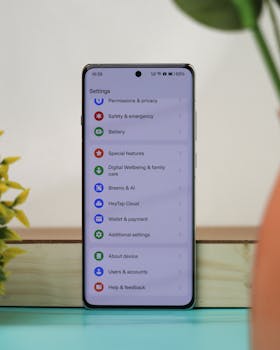
Phones often ship with built-in secure folder tools. On most Androids, look under Settings or Security. Tap “Secure Folder” and follow prompts to enable the feature.
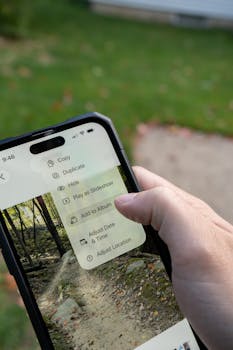
iOS devices run differently. Use the Hidden Album feature in Photos — enable it in settings, then move chosen images inside. It’s a seamless way to hide photos you wish to keep discrete.
Built-in tools often let you unlock folders via PIN, password, fingerprint, or face recognition. This speeds up protection while keeping everything within your phone’s ecosystem.
Third-Party Apps Deliver Additional Security Layers
Some users want more advanced options. App stores are packed with tools to lock folders using extra encryption, decoy passwords, and stealth modes for those extra-private photos.
Install, set a robust passcode, then select “Import” or “Hide.” Most apps support separate vaults for work and personal content, making it simple to sort and hide photos instantly.
Paying attention to app permissions ensures your hidden images stay truly private. Turn off backup syncing inside these apps to avoid unintended cloud uploads or leaks.
| Method | Strength | Ease of Use | Next Step |
|---|---|---|---|
| Android Secure Folder | Device-integrated, biometric | Very easy | Enable in Settings |
| iOS Hidden Album | System-integrated, less robust lock | Easy | Enable “Hidden” in Settings |
| Third-Party Vault App | App password, encryption | Easy to moderate | Install from store, import photos |
| Manual File Browser | No lock, basic folder move | Manual | Rename folder, move photos |
| Cloud-based Lockers | Online encryption, account lock | Moderate | Register, upload photos |
Creating Strong Barriers: Passwords and Biometrics Earn Trust
Strong locks keep out persistent snoopers and help maintain peace of mind. Use complex passcodes or biometric checks for each secure folder setup to truly hide photos effectively.
Simple PINs won’t always cut it. Add a mix of letters, numbers, and symbols. Biometrics fast-track entry for you, but act as tough barriers for unwanted viewers.
Prioritizing Password Hygiene Gives You an Edge
Regularly updating and customizing your passwords shields folders from predictable guesses. Avoid birthdays or names found in your contacts—the more random, the safer.
Fingerprint or facial unlock makes hiding photos both secure and convenient, especially if you quickly need to access or share specific memories in person.
- Use at least 12 characters; longer is better for resisting brute-force attempts. Choose something memorable, not easily shared.
- Don’t reuse passwords from online accounts; every secure folder or photo vault app should have its own lock to break attack chains.
- Mix upper/lowercase letters, numbers, and symbols for core folders. This makes them incredibly tough for software or relatives to guess.
- Leverage built-in phone authentication settings — they’re faster and reduce the chance of password leaks or forgotten codes.
- Change passcodes routinely, especially if you’ve shared your device in the past or suspect someone knows your secret.
These actions keep your protected images hidden behind real, tested barriers and help you stay confident about personal data security at all times.
Managing Backup and Sync Helps Avoid Accidental Exposures
Your phone may try to back up hidden photos unless you take charge of sync settings. Double-check which folders get sent to the cloud and which are kept isolated.
Switch off backup and auto-sync in your secure folder app or through your default photo management app. This step can make all the difference for true privacy.
- Immediately review cloud sync policies—look for any “auto backup” toggles in settings. Update them so hidden photos remain local to your device only.
- Unlink sensitive albums from general cloud galleries; let only designated folders upload to online accounts where you have tight control.
- Store important backups offline on encrypted external drives or USBs. This provides a fallback in case your phone is lost but doesn’t expose hidden images online.
- Consider an encrypted cloud service with private keys you manage directly. This minimizes risks if you need backups but require maximum confidentiality.
- Test sync by adding a decoy image and checking whether it appears in your cloud app. Adjust settings if anything unexpected uploads automatically.
Careful backup management stops surprises like private photos reappearing elsewhere. This is particularly critical if you ever need to hide photos from shared account users.
Organizing and Revisiting Your Hidden Content Keeps Order
Good organization makes finding, sharing, or deleting hidden images quick and frustration-free. Regular audits catch security or clutter issues before they become a concern.
Establish a routine: once every couple of weeks, open your secure folder, check what’s inside, and remove anything outdated or no longer needed.
Labeling and Sorting Streamline Access
Assign clear folder names like “Travel,” “Family,” or “Work Docs” inside your secure app. This reduces confusion and enables you to find hidden photos effortlessly when a friend visits.
Use tags or color markers if your app supports them. Group images logically, so you’re not fumbling when speed and privacy matter.
Avoid generic names that might give away private content if someone else glances over your shoulder during a shared phone session.
Scheduled Cleanups Prevent Data Buildup
Create a calendar alert that reminds you to revisit your secure folder monthly. Review, delete, or move outdated shots to backup, so your hidden content remains minimal and relevant.
Think of it like cleaning out an old desk drawer: everything feels lighter when messy scraps disappear, and finding important things becomes stress-free.
After each cleanup, double-check your app’s activity log. Ensure nothing was accidentally exported or backed up in the process, keeping hidden photos completely private.
Private Images Stay Safe With Smart Hiding Tactics
Securing treasured pictures by choosing reliable actions and maintaining strong folder locks sets you up to keep digital moments hidden from public eye.
Adopting robust passwords, frequent cleanups, and mindful backup practices lets you hide photos effectively and confidently. Every user can craft their privacy routine uniquely.
Each photo you protect is a step toward worry-free sharing and storage. Move forward using these tested strategies to ensure your snapshots remain exactly where you want them — seen by you, and no one else.