

Tutorials
How to Change App Permissions Manually: Take Full Control of Your Mobile Privacy
Take control of your privacy with this step-by-step guide to change app permissions manually. Learn to secure your device and only share data when it counts—no tech expertise needed.
Advertisement
Updating permissions for every app isn’t just about privacy—it’s about convenience, battery life, and peace of mind. Most devices make it straightforward, but a few steps can make a big difference. If you’d like full transparency about every app’s behavior on your device, you’re wise to explore each menu and option available.
This article lays out specific actions so you can change app permissions with confidence. You’ll find step-by-step guidance, practical examples, and tips to empower your day-to-day use. Let’s get started, and make your phone truly yours once more.
Pinpointing App Behaviors Through Permission Menus
Reviewing permission menus immediately gives you a clear view of what each app accesses. You’ll spot anything unusual before it becomes an issue, which matters.
Permissions range from location tracking to contacts, so it’s smart to develop a habit of checking whenever you install a new app or after updates. You don’t want surprises.
Drilling Into the Settings: Finding The Right Menu
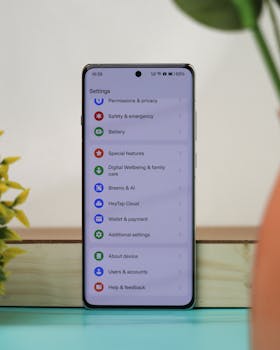
Open your device’s settings and tap “Apps” or “Applications”. This is where you’ll find the full list installed, including both system and downloaded ones.
Select an app. Look for “Permissions”—usually listed near the top or under “App Info”. Every permission granted is shown with a clear toggle for each item.
If you use Android, you might see permissions separated by types, such as location, microphone, and storage. On iOS, similar sections exist under app-specific menus.
Comparing Permissions Side by Side
It helps to view permissions for similar apps together. Messaging apps, for example, sometimes request camera, storage, and contacts, but never your microphone if you rarely use voice messages.
If one app requests more than another, consider whether it matches how you use the app. Mismatched permissions may indicate a privacy risk you should address immediately.
For security, trust but verify—don’t just assume because one app uses a permission, its competitor needs the same level of access. Always vet each request based on its function.
| App Name | Critical Permission | Potential Risk Level | Recommended Action |
|---|---|---|---|
| MapsApp | Location | Medium | Allow only while using the app |
| MessengerX | Microphone | High | Review frequency of use; toggle off if not needed |
| PhotoShare | Camera | High | Disable camera if you only browse images |
| FitnessPro | Health data | Critical | Grant access only if you track activities |
| WeatherCast | Location | Low | Allow approximate location for regional updates |
Implementing Permission Changes with Careful Steps
Changing app permissions lets you direct how much personal data each service receives. By customizing, you boost privacy without accidentally limiting vital app features.
Approach permission toggling methodically, like checking locks on every door before leaving home. That’s how you prevent unwanted leaks of data or battery drain.
Inspecting Frequency of Permission Requests
Apps sometimes prompt for access repeatedly. If you encounter persistent requests, ensure you haven’t denied a critical permission by mistake—review the app’s actual function.
Consciously tap “Allow” or “Deny” after reading each request, not out of routine. If annoyed by repeat prompts, double-check permission status in device settings directly.
- Tap “Settings,” select “Apps,” and choose your app to manage permissions so you know exactly what has been granted and why you gave access.
- Consider default-denying sensitive items unless you actively use a feature. Most messaging apps won’t break if you deny the camera unless you send photos a lot.
- After major OS updates, review permissions because system resets sometimes revert selections to default, opening new privacy gaps.
- Use analogies—think of permissions like keys: only lend ones you actually need, never just because an app asks for them.
- If productivity suffers after changing app permissions, retrace changes, and restore just enough access to regain lost functionality.
If you experience “feature blocked” pop-ups after an update, revisit permissions and selectively restore only necessary ones, rather than a blanket “allow all.”
App-Specific Permission Reset Protocols
Some apps include built-in reset tools that return their permissions to the default state. These can save time if an app misbehaves after a change.
Use this feature by opening the app’s own settings (not the device menu). Look for “Reset permissions” or “Restore defaults” within the app’s privacy or security sections.
- Check privacy settings within the individual app for hidden toggles that override system permissions, adding extra privacy layers.
- Some updates silently add new permissions—watch every change log or update notice before you agree to new requirements post-update.
- If an app requires permissions for necessary tasks, like location in a map service, grant them on a “while in use” basis, not “always.”
- Quickly disable unneeded permissions through your phone’s main settings panel; check “Restrict background activity” for battery gain and privacy.
- Use notification controls: turn off “Show on lock screen” for privacy, as notifications can reveal sensitive content even with permissions limited.
Temporarily grant permissions for unfamiliar functions, and revoke once your need passes. That way, your baseline privacy remains strong no matter how many apps you try.
Fine-Tuning Permissions for Better App Performance
Tweaking permissions doesn’t just shield you—it can also make your favorite apps work more smoothly when properly configured.
Balance is key: an app loses value if you block mission-critical permissions, but reckless allowance invites security concerns you’ll want to avoid.
Prioritizing Essential Access for Core Functions
Some permissions are vital to core features. Maps apps, for instance, need location when navigating, but you may want to restrict “always” access in favor of “while using.”
For messaging, camera and microphone should be permitted only if you frequently send voice notes or photos—otherwise, disabling increases privacy with little usability impact.
Before you change app permissions, match essential features with their real needs. If an app won’t launch, review what you’ve denied and adjust as needed.
Scheduling Permission Reviews for Ongoing Security
Create a calendar reminder every quarter to audit app permissions. Much like cleaning a closet, the process takes little time but has outsized security rewards.
Scan every entry under “Apps” in your settings panel and revoke permissions for anything unused or outdated, clearing digital clutter as you go.
Document major changes in a notes app, so you can easily remember what you modified if an app malfunctions later on.
Maintaining Privacy During App Updates and Downloads
Keeping control over permissions is a dynamic process. Apps frequently add or request new data during updates or initial installations.
After installing a new app, review all its permissions before you open it. Updates are an opportunity for apps to sneak in expanded access, so always double-check post-update.
Handling Permissions That Change Without Notice
Occasionally, you’ll notice a notification prompting you to approve a new permission after an app update. Don’t skip this screen; read it for new requests and scrutinize each one.
If you tap “Allow” out of habit, you might give away more than you planned. Stop, review, and decide each permission’s value first.
Restore comfort by minimizing surprise access changes—that defensive approach stops unwanted camera, microphone, or location use.
Adapting to Changing App Behaviors
Not all apps announce permission changes openly. If one suddenly requests background activity or access to unrelated data, be skeptical and check its reputation online.
Removing an app’s permissions can break or degrade features. Test each function post-adjustment; if something’s missing, re-enable just that permission.
If you suspect an app abuses new permissions, uninstall it and find a privacy-respecting alternative. Prioritize trust when picking new installations.
Collaborating with Family or Team to Manage Permissions
Many people share devices with family or work teams. Group management of permissions keeps everyone safer and sets consistent boundaries for all users.
Building awareness in others makes device privacy sustainable, so include the topic as a routine check-in whenever you catch up or set up new devices together.
Teaching Good Permission Habits in Shared Environments
When explaining permissions to family or teammates, keep analogies relatable: “Would you give your house keys to a new delivery driver?” Only grant real necessity.
Walk through your changes together—show how to turn off unnecessary permissions, so even less tech-savvy users feel comfortable and empowered.
If someone accidentally enables risky permissions, use it as a learning moment. Demonstrate reversing the change and stress why it matters for everyone’s safety.
Building Checklists for Group Privacy
Draft a simple checklist: review permissions post-update, audit monthly, and discuss any app access oddities. Keep the list visible or shared in a group chat for reminders.
Designate a “privacy lead” for teams—a point person who stays up-to-date and helps others handle permission questions before problems arise.
Always assign responsible permission management whenever handing down a phone to a younger family member. This ensures boundaries are respected and privacy is preserved.
Reinforcing Digital Safety with Permission Audits
Conducting regular app permission audits fortifies your mobile security. Too many apps with blanket access weaken personal privacy and your device’s resilience.
Approach audits with clear intention—start with your most used apps, as they pose the greatest risks if compromised or over-permissioned.
Spotting Permission Red Flags Quickly
Permission requests that mismatch an app’s main function—a flashlight app asking for your contacts—signal the need to revoke and possibly uninstall immediately.
Each “red flag” should prompt a quick online search: check other users’ experiences and decide if continued use is worth the exposure.
Document permission removals if business apps are involved, so IT teams or colleagues know what was adjusted later for troubleshooting.
Setting Baseline Permissions by App Category
Adopt a tier system. Social, messaging, or banking apps deserve stricter scrutiny—review every toggle. News or single-purpose apps usually work fine with minimal permissions.
Write down your own permission philosophy; stick to it each time you change app permissions, ensuring every decision fits your privacy threshold.
Update your lists during each audit and see patterns: which apps overreach and which respect user boundaries natively?
Wrapping Up: Making Permission Management a Natural Habit
You now have hands-on skills to change app permissions confidently—improving security, convenience, and even battery life.
Making this process routine keeps your data in your hands. It’s not just a one-time fix but an ongoing habit worth maintaining every few months.
Every step you take clarifies who can see or use your information. Consistent permission management brings long-term peace of mind in a tech-driven day-to-day life.