
Tutorials
How to Set Custom Ringtones for Each Contact on Your Phone
Give every contact their own sound! Set custom ringtones for each person, boost call recognition, and sculpt your phone’s alerts to match your lifestyle. Try these practical steps right now.
Advertisement
Ever felt your phone’s notification blends into the background? Assigning custom ringtones for contacts makes those calls pop out, distinguishing important alerts without looking at your screen.
Getting the right custom ringtones not only helps you answer calls quicker; it personalizes your mobile experience in a way that’s easy and fun. Friends, family, and coworkers each get their own sound.
If you want to manage calls smoothly and ensure you never miss someone important, this guide will walk you step by step through custom ringtones and tailored notifications.
Choosing Personalized Sounds That Stand Out Right Away
Picking a unique tone for each contact lets you recognize who’s calling before glancing at your phone. It’s direct and speeds up your response dramatically.
Custom ringtones bring clarity when your phone is buried in a bag or another room. With the right sounds, you create instant recognition.
Comparing Default vs. Custom Sound Settings
Default ringtones treat every contact the same, offering little distinction when calls arrive. Switching to custom ringtones personalizes and organizes your contact list audibly.
Custom options empower you to tell the difference quickly—a friend’s ringtone can be cheerful, a work call somber. Use your taste and make each tone meaningful to you.
Analogous to placing name tags at a party, custom ringtones ensure no caller is anonymous. Assigning each person a sound clarifies who you’re about to greet or ignore.
Picking a Custom Ringtone for Family, Friends, or Work
Select a gentle melody for loved ones, so their calls never feel intrusive. Assign a distinct, businesslike sound for work-related contacts for fast, focused action.
Labeling contacts isn’t just for numbers—consider hobbies, jokes, or shared music memories. For a sports teammate, try their favorite team’s fight song to bring a smile to every call.
The trick is choosing tones that match your personal connection. Custom ringtones aren’t just noises—they become shorthand for your relationships over time.
| Contact Type | Default Ringtone | Custom Ringtone Idea | Takeaway |
|---|---|---|---|
| Family | Classic Bell | Soft piano theme | Pick a warm, non-jarring reminder |
| Friends | Marimba | Favorite song chorus | Fun tones trigger instant recognition |
| Work | Digital beep | Short electronic pulse | Professional sounds keep focus |
| Spam/Unknown | Same as others | Buzz or subtle chime | Low-key alerts reduce distraction |
| VIP | Random default | Distinct chime or announcement | Prominent tones ensure no call is missed |
Organizing Ringtones for Practical Usage
Systematically setting custom ringtones for contacts helps you quickly identify the caller in a busy environment. Prioritizing setup saves you time and confusion later.
For maximum impact, update frequently dialed numbers first. Tune the setup to your routine and typical day-part needs—alerts, meetings, or downtime.
Mapping Contacts for Maximum Effect
Start with your top ten most-contacted numbers and assign each a unique custom ringtone. Focus on utility over novelty for the core group.
You’ll benefit from quick, context-aware alerts without needing to constantly pick up your phone. Select tones that help manage work-life boundaries, too.
- Assign work contacts a professional alert tone to help you switch gears during the workday, ensuring business matters stand out and never blend with social buzz.
- Give family members softer ringtones to set a calming, positive atmosphere in your home or during downtime—this supports relaxation and distinguishes family connections from the rest.
- Choose energetic, upbeat sounds for friends and social callers. It adds energy to your social life and instantly signals fun messages or plans are coming your way.
- Designate uncommon or unused ringtones for emergency contacts. In an urgent situation, a unique tone boosts your response time without confusion or hesitation.
- Use minimal tones for telemarketers or spam to keep distractions low. Subtle beeps let you decide how to respond or ignore calls as needed.
Keep your setup organized and updated. A monthly sweep of your custom ringtones will keep your system fresh and occasional tweaks can prevent confusion.
Fine-Tuning Volume and Vibration Settings
Customize volume levels for each custom ringtone to personalize alerts further. Soft tones suit quiet places; louder ones command attention even in noisy spaces.
Add vibration patterns to your contacts. This gives you an alternative cue to recognize urgent calls in environments where sound may not be appropriate or audible.
- Set consistent vibration for work so you never miss a business call, even in meetings where silencing your device matters most.
- Pair a long buzz with emergency numbers so you feel the urgency without relying on sound alone—ideal in silent or outdoor scenarios.
- Keep short, single pulses for non-urgent contacts, letting you check them at your leisure with zero disruption to more important activities.
- Disable vibration for rarely contacted numbers, prioritizing only relevant callers so your phone stays quiet most of the time.
- Mix patterns for instant recognition, such as two short pulses for family. Practice noticing these cues until they become second nature.
A well-organized vibration and sound scheme for custom ringtones gives you control without causing noise fatigue over time.
Assigning Custom Ringtones Step-by-Step in Your Phone’s Contacts
The sequence to assign custom ringtones varies slightly with your platform, but the process remains similar on most up-to-date phones and devices.
Begin by opening your Contacts or Phone app, locate the desired contact, and look for an “Edit” or “Details” button to start the settings process.
Tapping Into the Edit Menu to Find Ringtone Options
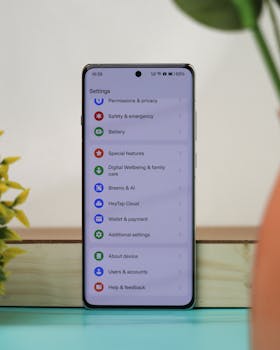
Once inside the Edit screen, scroll down until you see the Ringtone option—sometimes under “Advanced” or “More settings.” It may be labeled just as “Sound.”
Tap this option, and you’ll see your available list of default system sounds plus any ringtones you’ve downloaded or added yourself. Listen and choose what fits best.
Many devices preview ringtones with a single tap; if one stands out, select and apply it. The custom ringtones feature instantly links to that contact’s profile.
Saving and Testing Your Customization
Always tap “Save” or “Done” in the contacts menu after choosing your ringtone to ensure your choice sticks. Unsaved changes lead to default behavior next time.
Call your phone from that person’s number or use your second line to confirm the setup. You’ll want to experience the ringtone in real conditions for full assessment.
If you don’t hear what you expect, repeat these steps. Many phones show a small musical note next to a contact when you’ve set a custom ringtone—use this visual cue for confirmation.
Custom Ringtones File Types and Creative Sources
Staying aware of allowed file types makes downloading or importing custom ringtones easier. Stick with common audio files like MP3, M4A, or OGG for broad compatibility.
Capture snippets from favorite songs, record your voice, or use sound-clip apps to make your ringtones truly unique. Mix personal audio for every key contact.
Converting Songs or Sounds to Ringtone Format
Trim songs or voice memos to 20–30 seconds for practical custom ringtones. Use a free mobile editor or desktop program for cutting clips.
After editing, export or save as MP3 or M4A. Transfer the file to your ringtones folder via a cable, cloud, or sharing app, then set it as directed above.
Make sure the sound is crisp and the volume appropriate. Test on your device speaker for clarity—avoid muffled effects or overly loud intros that cause discomfort.
Organizing and Managing Your Library
Store custom ringtones in a single folder for fast assignment—most phones recognize new files immediately. Clean up unused tones monthly for less clutter and faster browsing.
Label each file descriptively, like “mom_piano” or “work_meeting,” so you remember the designated caller. Keeping things simple helps when you change phones later.
Back up your custom ringtones to cloud storage or your computer. Loss of unique sounds can feel disappointing; scheduled backups prevent accidental data loss if your device resets.
Troubleshooting Ringtone Issues Effectively
When your custom ringtones don’t play as expected, a quick reset of sound settings can solve many issues. Start by toggling the sound off and then back on.
If sounds are distorted or silent, check for Do Not Disturb mode or blocked media permissions within your device settings. Adjust accordingly until all tones function normally.
Addressing File Compatibility Errors
Sometimes, a ringtone file plays fine elsewhere but not when assigned. Checking its format and converting to a supported type solves many headaches—always stick to known-good formats.
Review your phone’s guide or help portal for compatible custom ringtones extensions. Changing M4R to MP3 or OGG usually works on most platforms with little effort.
Only keep audio files under 1MB for fastest loading. Trimming or compressing your chosen sound prevents playback errors, especially on older or storage-limited devices.
Sync and Backup Glitches
Sometimes a phone loses custom settings after updates or manufacturer resets. Re-sync ringtones from your backup folder or reassign them via the steps shared above.
Keep backup copies in cloud drives or a trusted computer. When you restore your contacts, point manually to each custom ringtone file to complete your setup quickly.
Spot-check critical contacts after syncing or restoring. Test-call them to make sure their custom ringtones still play. Revisiting every few months ensures long-term reliability.
Maintaining Your Custom Ringtone Setup Smartly
Regular maintenance guarantees your custom ringtones keep working correctly. As software updates roll out, double-check your ringtones remain linked to the right contacts.
If you expand your contact list, remember to assign new ringtones immediately so your notification scheme stays useful and up-to-date for daily needs.
Rotating Tones to Avoid Fatigue
Changing custom ringtones every few months keeps your notification system fresh. Rotate tones seasonally or after major events for a sense of renewal and ongoing usefulness.
Save your favorite custom ringtones for fallback options. When you rotate, you’ll always have reliable tones in reserve that feel comfortable and familiar regardless of mood changes.
After a change, test a few incoming calls from key contacts. This ensures the fresh tones are just as easy to recognize in your current routine as before.
Adapting the Approach With Life Changes
Major life transitions—like a new job or family member—warrant new custom ringtones. Assigning or changing tones marks the occasion, reinforcing the mental distinction each contact holds.
If moving or changing environments, tailor your ringtone volume and style to suit local context. Quieter settings fit new workplaces; vibrant tunes fit busy home or social spaces.
Ensure your ringtone list is relevant to your lifestyle and relationships. Remove old tones for outdated contacts, and make space for new ones who matter more.
Rethinking Everyday Phone Alerts for Efficiency and Enjoyment
Throughout your day, clear and strategic custom ringtones save you effort and reduce stress. From practical organization to creative expression, this feature boosts both productivity and joy.
An updated, well-maintained ringtone catalog keeps your phone life running smoothly. Recognizing every important call instantly lets you stay focused while keeping in touch with what matters.
Treat custom ringtones as a personal tool, evolving with your context and preferences. By doing so, you’ll enjoy every call and message, letting your phone sound like your life truly feels.