


Tutorials

How to Clear Cache on Android Without Losing Data

Discover how to clear cache on your Android device without risking your data. Easy steps, practical tips, and smart routines show you how to keep your phone smooth and secure.

Advertisement

Android devices hold onto digital dust much like clutter gathers in your closet. After a while, you might notice lag, sluggish app loading, or strange hiccups.

The reason is cache files slowly pile up and can hog storage—affecting how things run. Learning when and why to clear cache can make your phone responsive again.

This step-by-step guide shows Android users how to clear cache without risking personal data. You’ll come away equipped to maintain speed and minimize storage headaches.

Pinpointing The Best Times to Clear Your Cache for Seamless Performance

Clearing cache isn’t a daily chore; proper timing keeps your device faster and uncluttered. Most people notice the need to clear cache as apps take longer to start.

You’ll see better results by understanding what triggers slowdowns—like large system updates, repeated use of resource-heavy apps, and certain app behaviors that leave traces behind.

Spotting Clues Android Needs Attention

Screens freezing or progress bars stalling after new app installs can mean your cache is bloated. You may catch yourself silently tapping, hoping the app will finally open.

Background apps running rough, such as browsers suddenly not loading images smoothly, may point to old cached data conflicting with new information on your phone.

Short battery life tied to heavier app or OS background activity can be linked to a full cache. When these symptoms align, it’s time for a careful clear cache routine.

Differentiating Between App Cache and System Cache

App cache stores frequently retrieved content, like Instagram’s image previews or music app playlists. It helps apps load routine elements rapidly when you relaunch them.

System cache, however, is where Android itself keeps temporary files for software and firmware updates, launcher configuration, and settings. This area is different from app cache.

If you need to clear cache, it pays to start with apps before considering system cache—ensuring smooth fixes without data risks.

Type Where It Lives Primary Purpose Should You Clear?
App Cache Individual App Storage Saves images, login, scripts per app Yes, when apps lag or crash
System Cache System Partition Speeds up OS & updates Sometimes, after major updates
Web Cache Browser App Storage Quick site loads and data forms Yes, if browser misbehaves
Thumbnail Cache Gallery/Media Apps Loads image previews fast Yes, if media doesn’t display
Temporary Files App Data or Download Folders Handles task switching Yes, if app has odd errors

Following Safe Practices in Clearing App Cache Step-By-Step

Manual clearing gives you control. This keeps personal photos, contacts, and messages secure. You avoid accidental data loss following this method.

Most Android phones include a cache-clear feature within app settings. Using it means only temporary files go, not your login credentials, downloads, or history.

Manual Clearing in App Settings

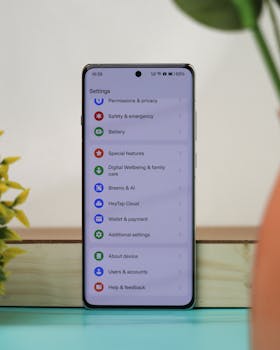
Navigate to “Settings,” tap “Apps” or “Applications,” find the misbehaving app, then tap “Storage.” Here, tap “Clear Cache.” Repeat for any other lagging apps.

Don’t confuse “Clear Data” with “Clear Cache.” Only the latter preserves your logins, preferences, and progress in games or streaming apps, so you don’t lose anything important.

  • Head to “Settings” on your phone; find “Apps” and select the target app to clear cache, which refreshes the app without removing your information or personal files.
  • Choose “Storage” from the application’s information screen, then tap “Clear Cache.” This action improves app performance without resetting preferences or accounts.
  • If prompted, confirm only cache removal. Avoid tapping “Clear Storage” or “Clear Data” if you want to keep login and customization settings for that app intact.
  • To streamline, sort your apps by usage or size; start with the biggest or slowest-loading apps, which tend to create the largest and quickest-growing caches over time.
  • Monitor app responsiveness after clearing cache. Improved load times or smoother scrolling mean your clear cache strategy succeeded, confirming it was the right call for that app.

Following these steps once a month is plenty for most users. Avoid daily clearing, as it’s unnecessary and may slow apps initially while they rebuild fresh cache.

Troubleshooting Caches in Browsers and Social Apps

If your web browser is sluggish or media doesn’t load in social apps, seek cache options in each app’s in-app settings (like Chrome’s menu or Facebook’s settings section).

Mobile browsers usually tuck clear cache control under “Privacy” or “Data Management.” Confirm you want only cached data removed—not cookies or saved passwords.

  • Open the browser app and look for the three-dot menu. Tap “Settings” followed by “Privacy.” Select only the cached data option; skip cookies and auto-fill if you want to keep logins.
  • Clear cache in heavy social apps (like Instagram or TikTok) by opening their settings and finding “Storage” or “Data Usage.” This keeps uploaded content and DMs safe.
  • Never uninstall an app just to reset cache—this removes app content and sometimes messages. Rely on built-in cache clearing before considering a reinstall.
  • If media files look corrupted, clearing thumbnail or media caches in device galleries solves display bugs, but won’t erase the actual photos or videos you’ve saved.
  • Track phrases like “why did my app log out” and remember: when you clear cache—not data—your accounts stay logged in despite fresher app files rebuilding in the background.

Disentangling cache from user data is simple and effective if you follow trusted app settings menus, avoiding drastic app resets unless you’re dealing with persistent problems.

Automated Tools That Safely Handle Cache Clearing Tasks

Relying on trusted maintenance apps or built-in device care options allows regular clear cache routines with minimal manual effort. This hands-off approach saves time while protecting your files.

Some flagships and newer Android versions offer Device Care or Storage Cleaner features, focusing on clearing cache for multiple apps with a few taps, helping non-technical users stay organized.

Enabling Device Maintenance Features

Launch “Device Care” or similar mode from system settings, then tap “Optimize.” This may show recommended clear cache opportunities without affecting documents or media files.

Check available tools periodically—weekly or when you notice lag. These features are built by the phone maker, so they don’t risk your app data or custom settings.

Press “Details” or “App-wise breakdown” to select which apps get cleared, if you prefer more control. Use this selective mode if you notice one app clogging storage.

Selecting Reliable Third-Party Optimizers

Consider third-party cache cleaners only from reputable app stores, with recent updates and strong reviews. Avoid apps demanding excessive permissions or those with unclear privacy practices.

Before enabling auto-clear features, review what the app targets—only app and web caches, never personal media or logins. Test on non-essential apps first to gauge edits.

Setting the cleaner’s frequency to monthly balances space savings and smooth usage, preventing disruptions to your routines or app memory.

Building A Consistent Routine Keeps Android Running Smoothly

Treat cache clearing as routine digital spring cleaning. The practice clears clutter, opens space, and gives your device a fresh feeling—without touching cherished photos, contacts, or downloads.

Regular cache maintenance—along with rebooting after large updates—avoids storage headaches and supports optimal performance, letting you enjoy Android at its best.

The next time things stutter or delay, trust your new expertise—clear cache confidently, knowing your personal data remains safe and your Android remains responsive.